Beginner guide · about 5 minutes. Updated 2026-11-06. The screenshots show the Chinese CC Switch interface.
What this page is for
- Turn on “统一 Codex 会话历史” (Unify Codex conversation history). The switch should be orange.
- After you change providers: fully quit the desktop app, then turn that switch off and on again, then reopen the app. Do not toggle first and quit afterwards.
- Decide whether a missing chat, a continuation error, 429, or 502 is something you fix or something you send to us.
What you need
- CC Switch on the computer, a version that includes unified Codex history.
- ChatGPT or Codex desktop, the window you type in.
- An APIrove key and base URL
https://apirove.com/v1. The key on this page is a placeholder. Do not post a real key. - Use the text group (APIrove-Text) for chat and images. Use the full group (APIrove-Unified) when you need Claude.
If you only need the address and key, start with the 3-step setup. This page is about desktop history and errors.
Recommended setup, in order
- 1
In CC Switch, switch to the provider you will use
Base URL
https://apirove.com/v1and your own key. After you save, that row says In use. - 2
Fully quit ChatGPT or Codex
End the process. Closing the window is not enough. On macOS use Quit. On Windows quit from the tray or end it in Task Manager.
- 3
Back in CC Switch, turn unified history off, then on
Do this even when it is already orange. If a dialog asks about importing existing official sessions, choose what you need. Stay in CC Switch. Do not open the desktop app yet.
- 4
Then reopen the desktop app
Open it only after the off-then-on toggle. Do not restart halfway, and do not toggle before you quit.
- 5
Start a new chat
Do not continue the old chat. Send one short sentence, then start the real work.
1. Turn on unified Codex history
The switch makes history from the official login and from a third-party provider easier to see in one list. CC Switch 4.0.7 says the switch is optional if you only use a new desktop build. If you use APIrove and you switch providers, leave it on.
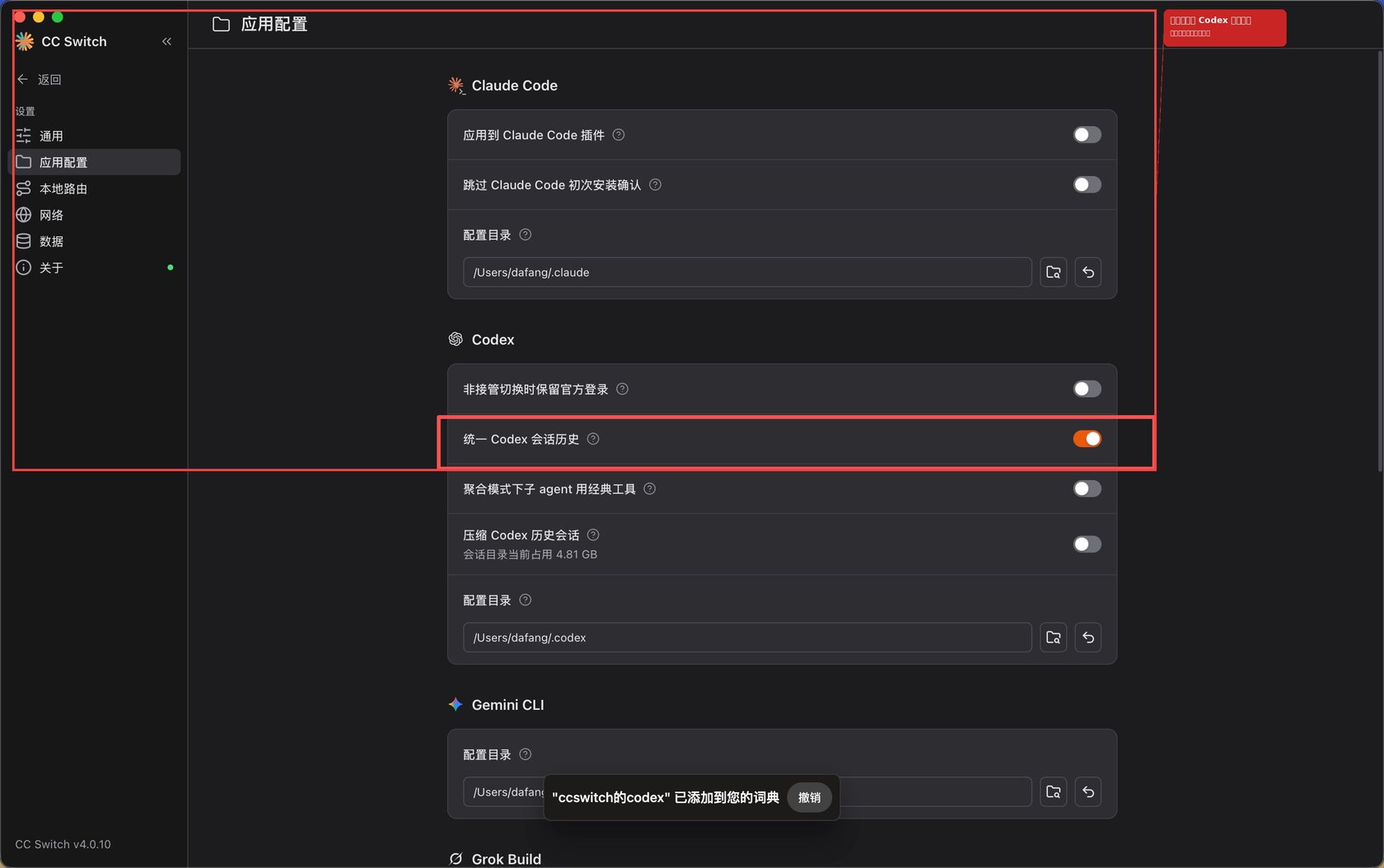
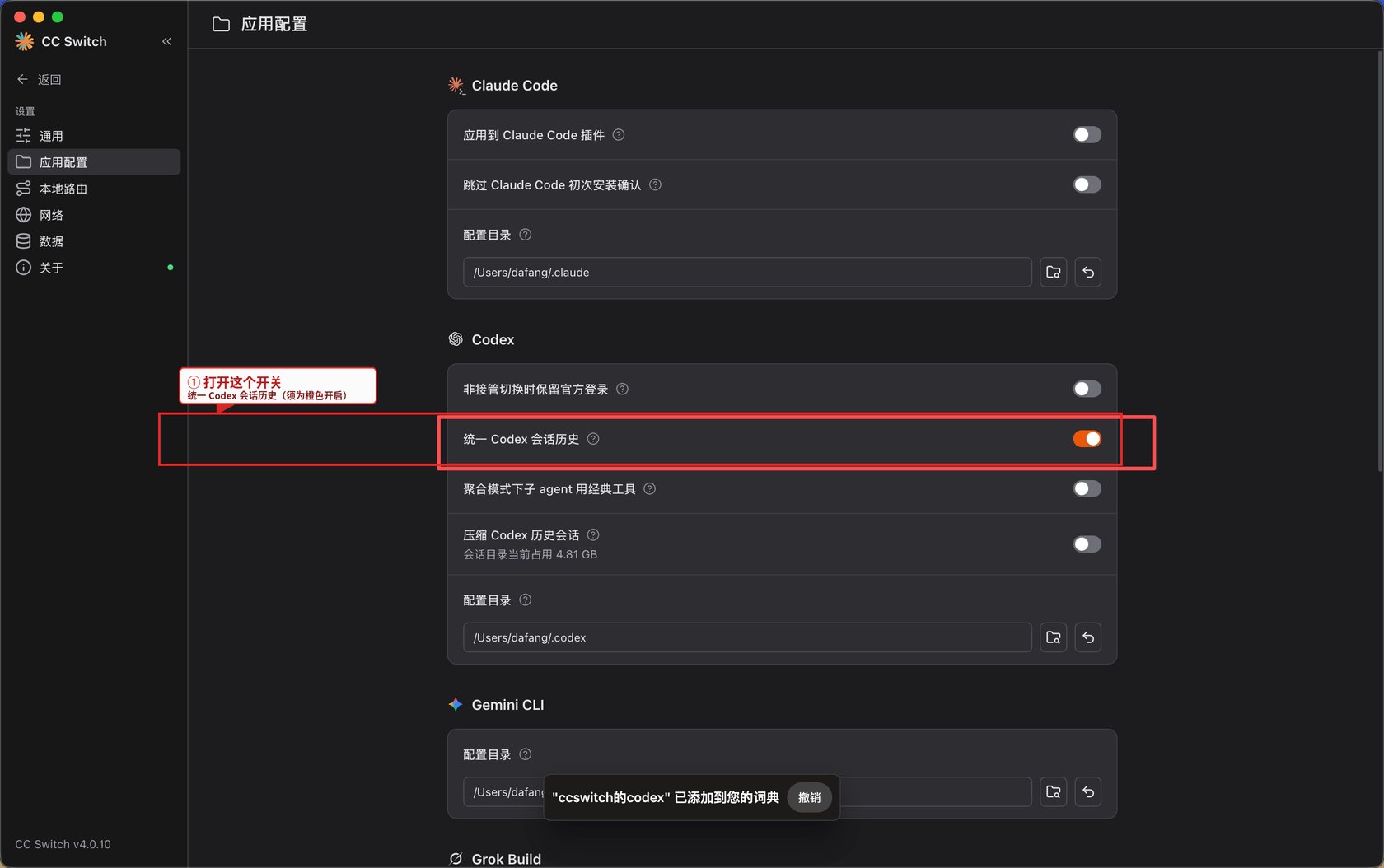
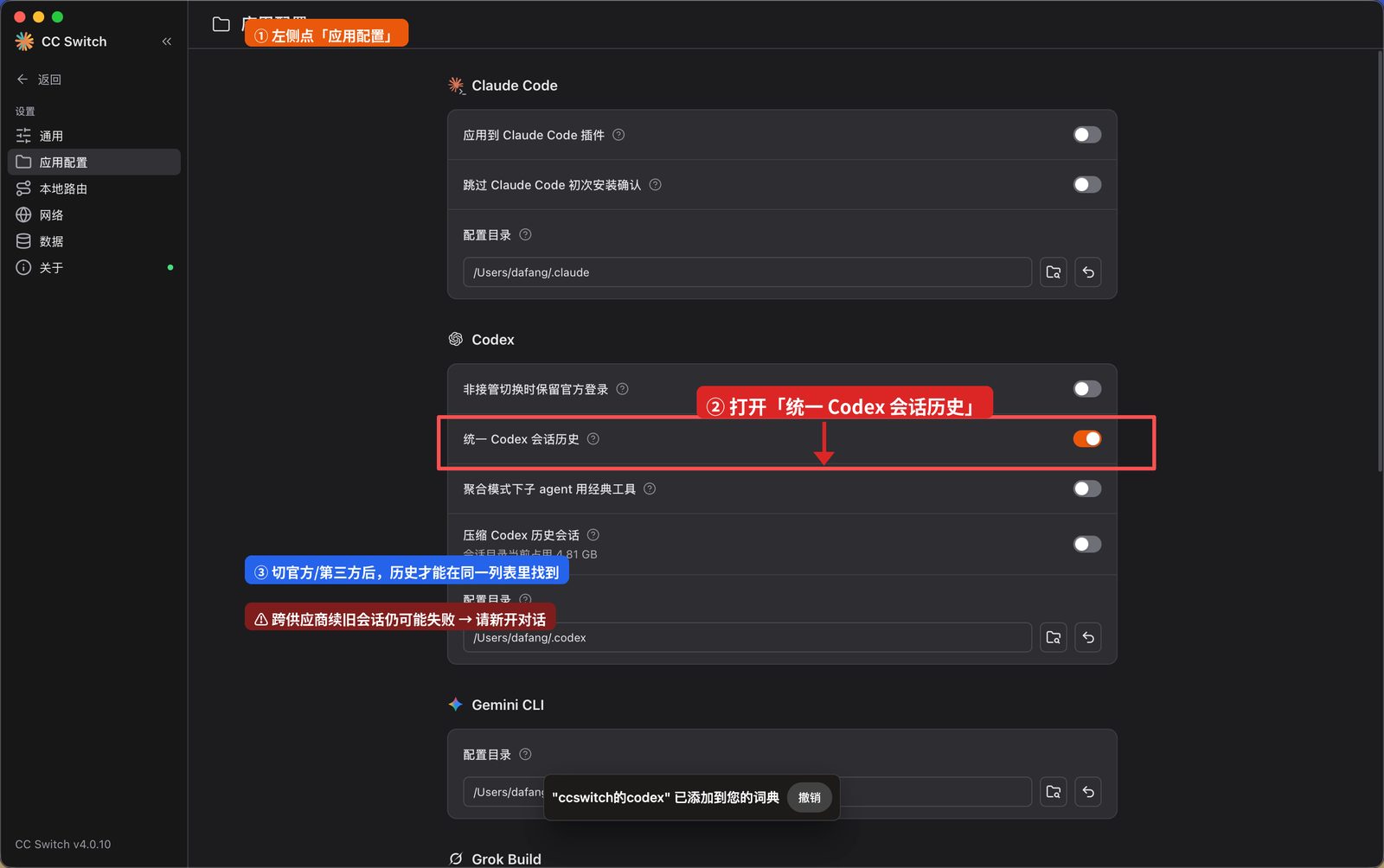
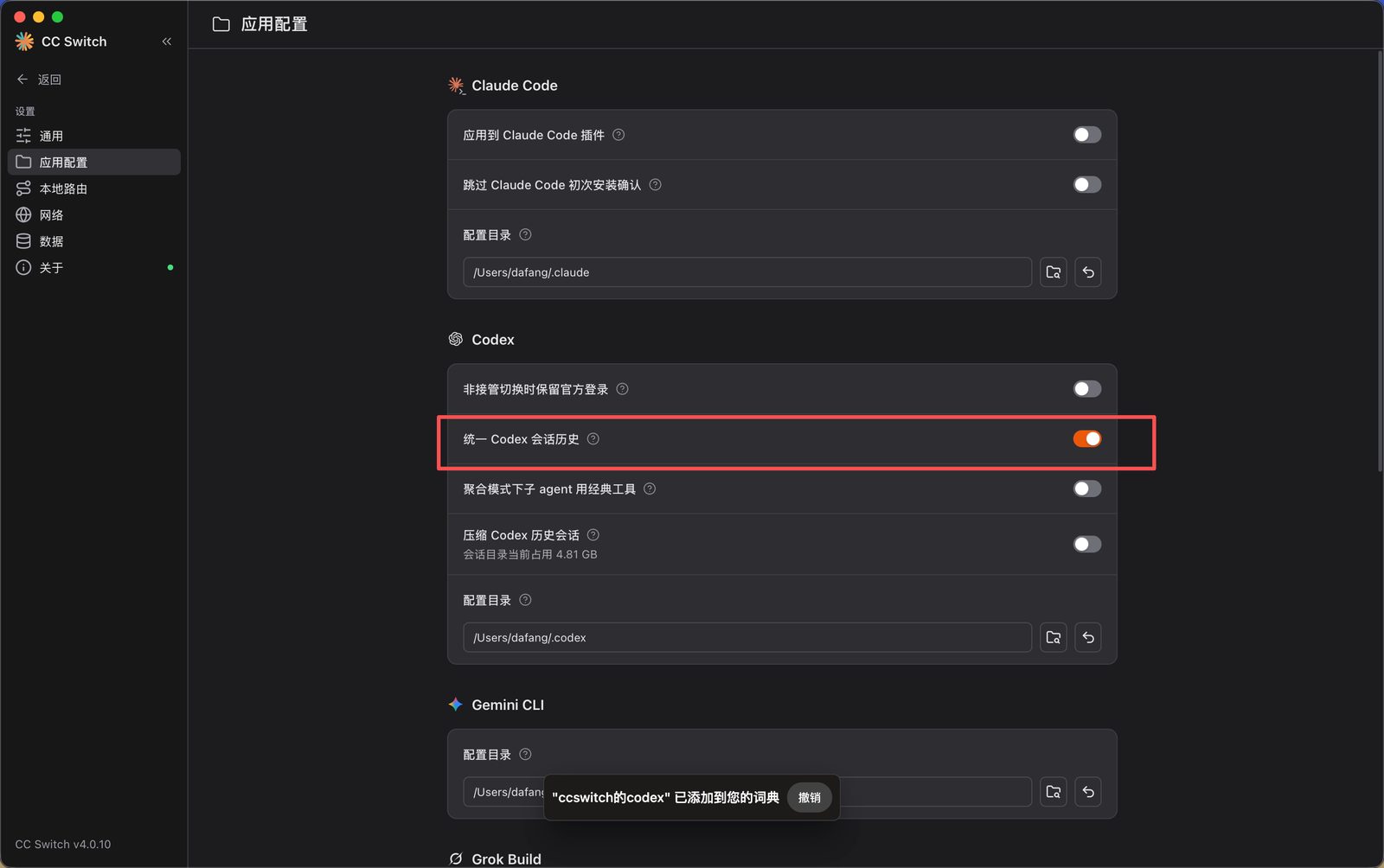
CC Switch’s own write-up of the switch is here (we are not copying it): unified Codex session history. Quit the app and handle errors the way this page says.
2. Base URL and key
- Create or select a provider in CC Switch. Name it so you can tell it is APIrove.
- Set the base URL below. Paste your own key from API keys. Do not use the placeholder.
- Save. That row must say In use.
https://apirove.com/v1YOUR_API_KEY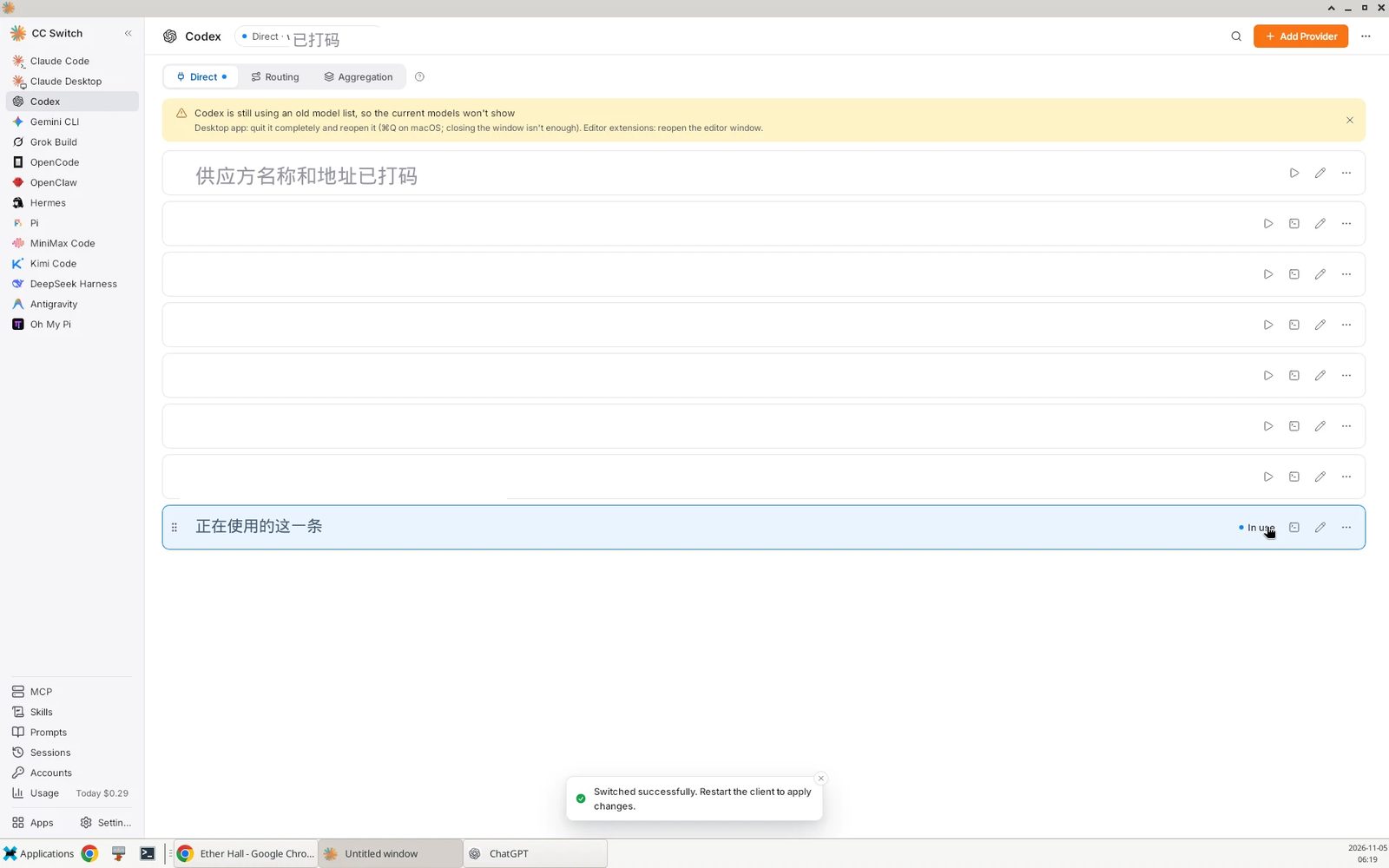
3. After you quit: turn unified history off, then on
- In CC Switch, select the APIrove provider and confirm In use.
- Fully quit ChatGPT or Codex. End the process. On macOS use Quit. On Windows quit from the tray or end the process in Task Manager.
- Back in CC Switch → App config → Codex, turn unified history off, then on. If asked about importing existing official sessions, choose what you need.
- Open the desktop app again.
- Start a new chat and send one short sentence. Do not continue the old chat.
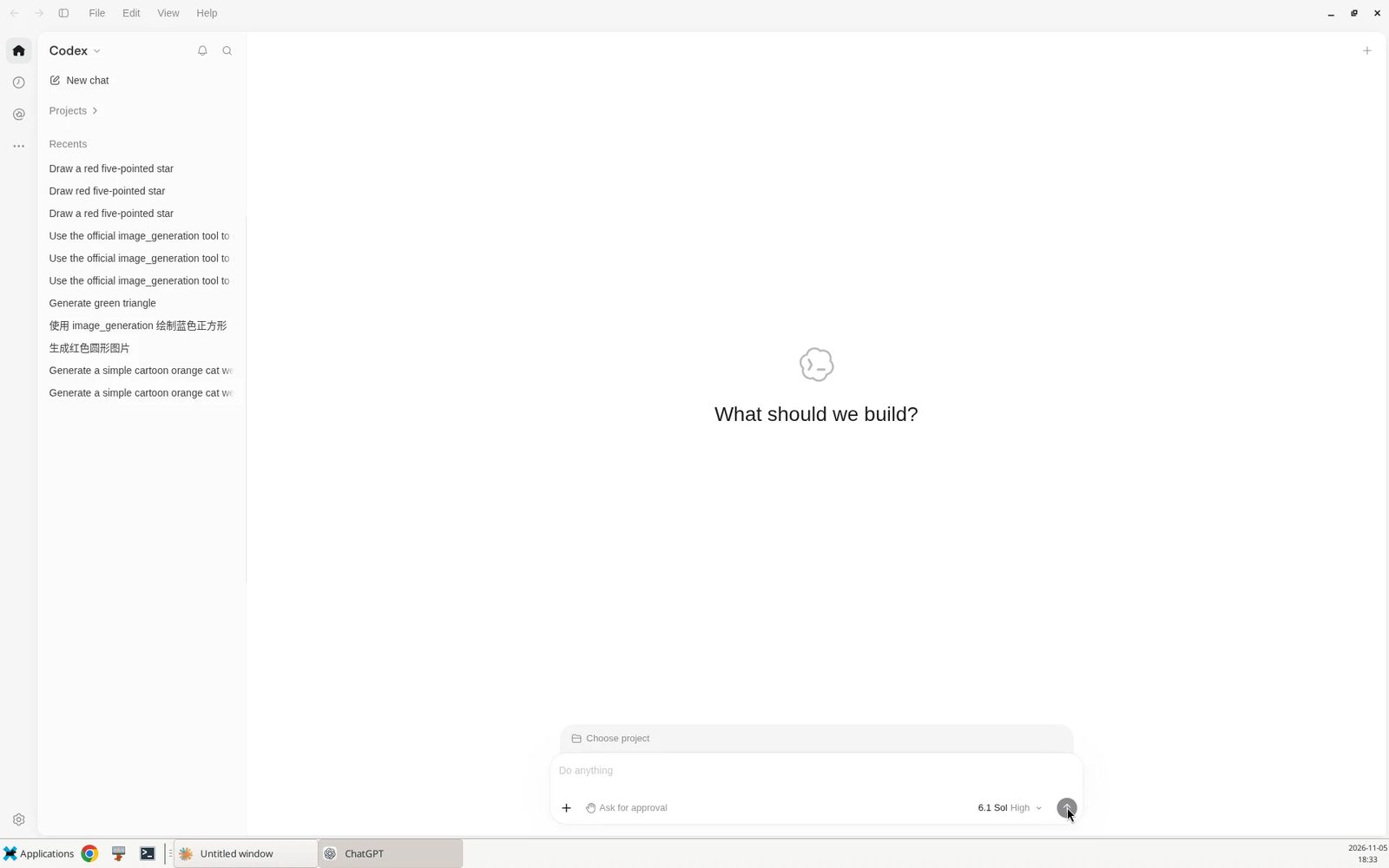
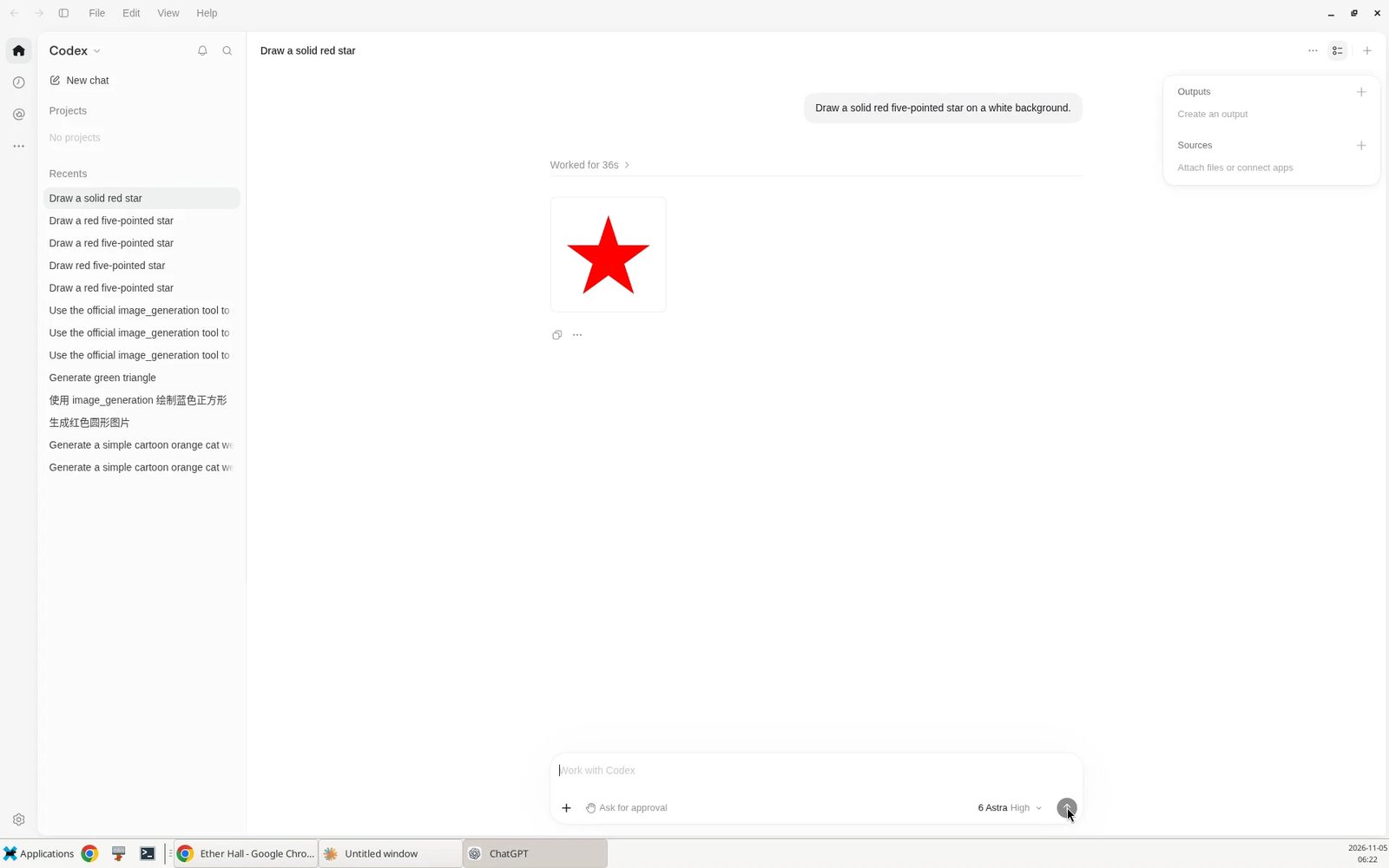
Day to day
- After a provider or key change: fully quit, then toggle off and on, then reopen, test a new chat, then work.
- Do not switch providers in the middle of a long chat and expect it to continue.
- One shared list does not mean an old chat can always continue. Start a new chat, or paste the plain text again. The record was not deleted.
Three problems that are not the same
- The list: the switch puts history in one list. If the list is stale right after a switch: fully quit first, then toggle off and on, then reopen the desktop app.
- An old chat will not continue: encrypted content from the old session often cannot be read by the other provider. The data is still there. Start a new chat and paste the plain text if you need it.
- opaque:
Cannot prove ownership of opaque conversation stateorCLIENT_TOOL_CONTINUATION_UNAVAILABLEmeans this turn cannot continue. Start a new chat. You usually do not change the key. That is not the same fault as a list that did not merge, but the first action is the same: a new chat.
Troubleshooting
Choose the one you see.
The old chat is not in the list
- Turn unified history on and check that it is orange.
- Or switch back to the provider you used then, and look again.
- If you just switched: fully quit first, then toggle off and on, then reopen.
If it is still missing, use the backup path in the CC Switch guide on your own computer, or write to us with a screenshot.
The old chat will not continue, or you see opaque
Cannot prove ownership of opaque conversation stateCLIENT_TOOL_CONTINUATION_UNAVAILABLE
This turn cannot continue. Start a new chat. Paste the plain text if you need the old content. If you just switched providers: fully quit, then toggle unified history off and on, then reopen. Do not toggle before you quit. You usually do not need a new key.
If a brand-new chat fails with the same sentence immediately, write to us with the screenshot and the approximate time.


You just switched providers and the list or the old chat is wrong
- Confirm the provider you want says In use.
- Fully quit the desktop app.
- Back in CC Switch, turn unified history off, then on.
- Reopen the desktop app.
- Start a new chat. Do not continue the old one.
If the new chat immediately shows opaque, use the opaque steps above and then write to us.
401 or 403
401: the key is wrong or missing. Paste it again in CC Switch, save the provider, and fully quit the desktop app.
403: this key cannot use that model. For a model that is not in the text group (such as Claude), use a full-group key and start a new chat.
429
Wait a few minutes and run fewer requests at once. If 429 keeps going, write to us.
400, other than opaque
Start a new chat, send one short sentence, and check the model name. If it still fails, send the full error text.
502 or 503
Wait 1–2 minutes and retry, or start a new chat. If it is still down after about 10 minutes, write to us with the time and any request id.
413
The request is too large. Shorten the context, attach less, and start a smaller chat. If 413 remains, ask us about the limit.
Image generation failed, or the model is not in this group
Text-group and full-group keys can both generate images; check that image generation is not turned off for the key. The model id has to match the model directory. Try a short prompt in a new chat.
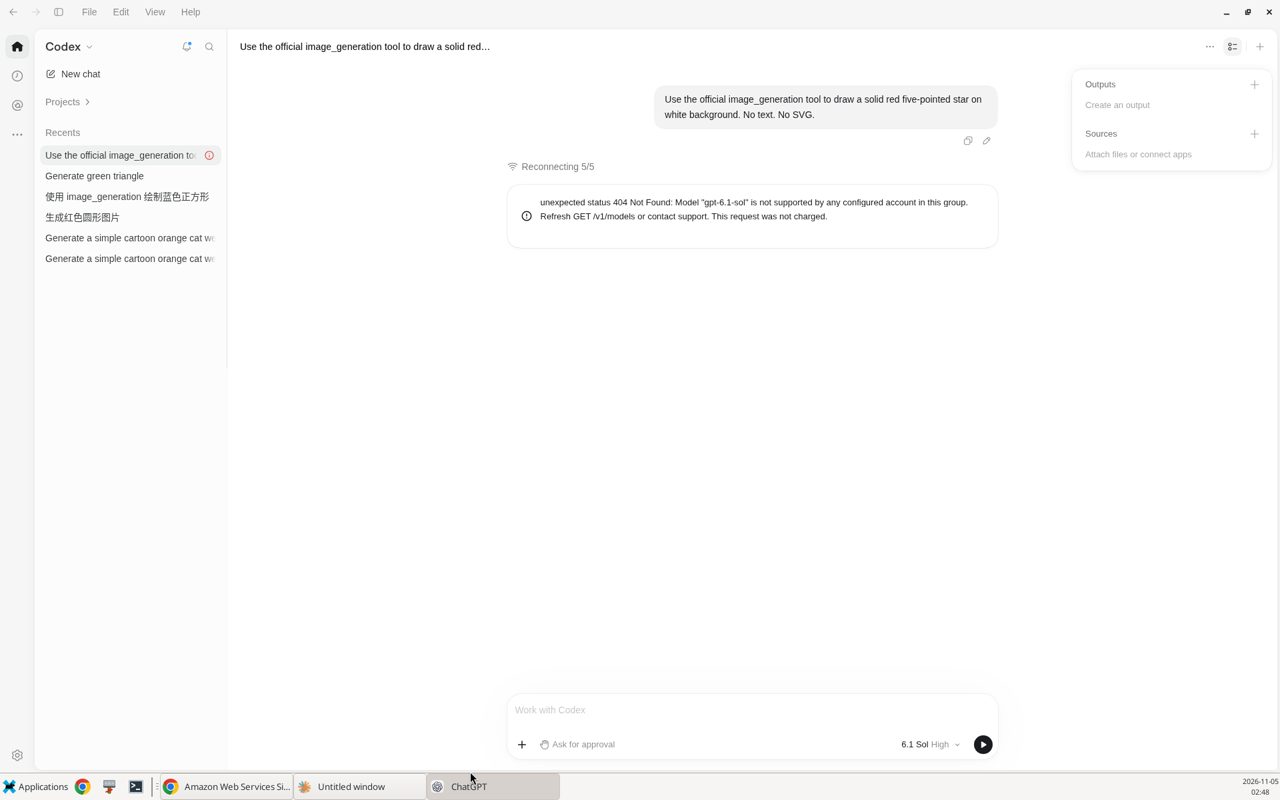
Insufficient balance
A low balance is not a stuck conversation. A new chat does not add credit. Open the console and follow what it shows. For balance questions, write to help@apirove.com.
Error table
Cannot continue → new chat. Bad key → check the key. Too fast → wait. Still down → write to us.
| What you see | Meaning | Do this first | If it is still broken |
|---|---|---|---|
Cannot prove ownership of opaque conversation state / CLIENT_TOOL_CONTINUATION_UNAVAILABLE |
This turn cannot continue | New chat Paste plain text if you need it. After a switch: fully quit, then toggle off and on, then reopen | Same error on a brand-new chat → write to us with a screenshot and the time |
| 401 | Key missing or wrong | Check key Paste again, save, restart the desktop app | Ask us to check the key. Do not email the whole key |
| 403 | No permission, or wrong group | Check group Check images are on for the key. Start a new chat | Ask us to check the group |
| 429 | Too fast, or the limit is tight | Wait Slow down for a few minutes | If it continues, write to us |
| 400 (other) | Format or parameter | New chat Send a short sentence and check the model name | Send the full error |
| 502 / 503 | Busy or briefly unavailable | Retry Wait 1–2 minutes, or start a new chat | Still down after about 10 minutes → write to us |
| 413 | Too large | Shorten the context and start a smaller chat | Ask us about the limit |
| Insufficient balance | Not enough credit. Unrelated to the chat state | Check the balance in the console. A new chat will not fix it | Write to us about balance questions |
| Old chat missing from the list | It is probably under another provider | Turn the switch on, or switch back. After a change: fully quit, then toggle off and on, then reopen | Check the local backup path, or write to us |
When to handle it yourself, and when to write
Handle it yourself: a new chat, a key check, a short wait, a smaller request. After a provider switch, use the five steps: fully quit, then toggle off and on, then reopen.
Write to us: a brand-new chat fails with the same error immediately; 401 or 403 remains after you recheck the key; 429 does not stop; 502 or 503 lasts about 10 minutes; the balance does not match what you expect.
- A screenshot of the full error.
- The approximate time, with your time zone.
- Whether you already fully quit, then toggled the switch off and on, reopened the app, and started a new chat.
Keys: API keys. Model names: models. Longer setup notes: pro guide.